I guess most content managers rely heavily on Word or other similar document processing tools to develop and manage content. I do too, but when it comes to managing hundreds of SMS and email content where I need to track character and word counts, Excel is my saviour! In this post, I’ll explain how I use three different formulas to count characters and words in three different scenarios.
Count the number of characters
I use the LEN function to count the number of characters in a cell. The characters can include digits, letters, symbols, punctuation marks and any space.
How to use this formula
The basic formula for this is:
| =LEN(“your text”) |
or
| =LEN(cell) |
To illustrate the first one:
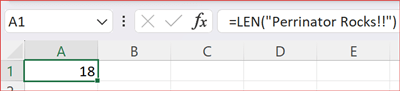
In cell A1, I enter the formula =LEN(“Perrinator Rocks!!”) and hit the Enter button. You’ll see that cell A1 shows 18, which is correct as there are 10 letters in “Perrinator”, one space between “Perrinator” and “Rocks”, 5 letters in “Rocks” and 2 exclamation marks.
I don’t normally use the first one because in my work, I manage hundreds of SMS content with more than 100 rows, so I can’t afford to copy and paste each content piece into the enclosed brackets (“”).
The second one is more practical for my use case where I place the content and the formula beside each other. For example:
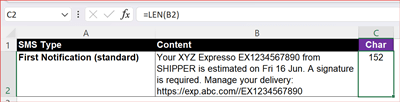
I put the content in cell B2, enter the formula in cell C2 as =LEN(B2) and hit the Enter button. Cell C2 shows 152. This way, I can clearly see the full content on my left and the number of characters on my right. The total character count is important for me because I need to know which SMS content exceeds 160 characters. FYI, each block of SMS message contains 160 characters, so if it exceeds 160, a second SMS will be sent. Every extra message sent is a cost to the company!
Count the number of characters without extra spaces
I want to exclude counting any extra or double spaces that most of my colleagues accidentally introduce when they make edits to the content. So, I combine LEN with the TRIM function. It removes all leading or extra spaces found in the content.
How to use this formula
The combined formula is:
| =LEN(TRIM(cell)) |
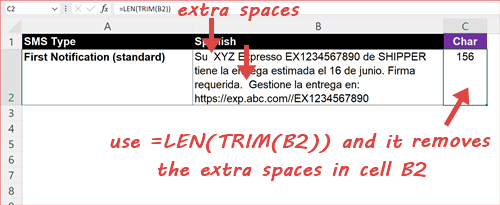
In the example below, there are two extra spaces in the content, which give the false impression that the character count is 158 when it should have been 156. Using the formula =LEN(TRIM(B2)), it removes the two extra spaces and returns the character count as 156:
Count the number of words with line breaks
Unfortunately in Excel, there is no straightforward formula to count the number of words in a cell. I’ll need to use a combination of functions to achieve that, i.e., LET, LEN, TRIM and SUBSTITUTE.
How to use this formula
The combined formula is:
| =LET(t, TRIM(SUBSTITUTE(cell,CHAR(10),” “)), LEN(t) – LEN(SUBSTITUTE(t,” “,””)) + 1) |
There are other formulas that can achieve the same result, but I specifically use this one because there are line breaks in my content. To illustrate, I have four line breaks in cell B2 that make the content appear as three paragraphs:
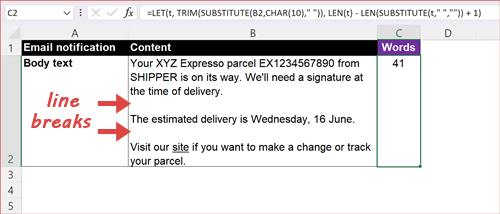
Using the formula =LET(t, TRIM(SUBSTITUTE(B2,CHAR(10),” “)), LEN(t) – LEN(SUBSTITUTE(t,” “,””)) + 1), I get a word count of 41. I’ll break down the explanation as follows:
SUBSTITUTE(B2, CHAR(10), ” “)
Generally, the SUBSTITUTE function replaces old text with new text. In this case, I use it to replace every line break found in cell B2 with just a single space. CHAR(10) is Excel’s code for a line break.

Word count relies on spaces between words. A line break is not a space, so, if we don’t replace the line break with a space, Excel will not treat it as a separator between words and it will count “delivery.The” as one word, and “June.Visit” as one word, which is wrong.

TRIM(…)
This is not exactly needed but I use it anyway as an extra safety check. This is because, after replacing the line breaks, I could have accidental extra spaces that I am not aware of. So, TRIM cleans the result of the SUBSTITUTE formula and stores the cleaned text in the LET variable “t”.
LET(t, TRIM(SUBSTITUTE(B2,CHAR(10),” “)), … )
The LET function stores the value of the cleaned text in “t”, so I compute that cleaned text once and then reuse it later in other parts of the formula. In other words, t = the final cleaned text I want to count words from cell B2.
LEN(t)
LEN returns the number of characters in “t”, which gives the length of the cleaned text, i.e., 225.
SUBSTITUTE(t, ” “, “”)
This removes all spaces from “t” by replacing each space with nothing.
LEN(SUBSTITUTE(t,” “,””))
This returns the character count of 185 after removing the spaces.
LEN(t) – LEN(SUBSTITUTE(t,” “,””))
This difference equals the total number of spaces present in “t”, so it’s 225 – 185 = 40.
… + 1
This is a word count formula where number of words = spaces + 1 (assuming the text in cell B2 is not empty and words are separated by single spaces after TRIM).
To sum it all up:
- After SUBSTITUTE(B2,CHAR(10),” “) and TRIM(…), we get t = Your XYZ Expresso parcel EX1234567890 from SHIPPER is on its way. We’ll need a signature at the time of delivery. The estimated delivery is Wednesday, 16 June. Visit our site if you want to make a change or track your parcel.
- LEN(t) = 225 (number of characters including spaces and punctuation).
- LEN(SUBSTITUTE(t,” “,””)) = 185 (characters after removing all spaces).
- LEN(t) – LEN(SUBSTITUTE(t,” “,””)) = 225 − 185 = 40 (this is the number of spaces).
- Final word count = spaces + 1, so it’s 40 + 1 = 41.
It’s important to note that, this method assumes words are separated by spaces (TRIM normalises them). Punctuation (e.g., commas, periods, apostrophes) does not break the count, so the word “we’ll” counts as one word.
When to use each formula
- LEN(cell): Count all characters for single-line content
- LEN(TRIM(cell)): Count all characters without extra spaces
- LET(t, TRIM(SUBSTITUTE(cell,CHAR(10),” “)), LEN(t) – LEN(SUBSTITUTE(t,” “,””)) + 1): Count all words with line breaks in the content and remove extra spaces
I hope this post gives you a new perspective on how using certain formulas can help you manage your content more effectively in Excel, especially when it comes to counting characters and words. You may also want to check out this post for the top 4 basic formulas in Excel. Cheers!